How to use
Stop working out "who plays next?" at every club night. This tool plans the whole session for you, right in your browser. No sign-up or app needed.
Choose the format
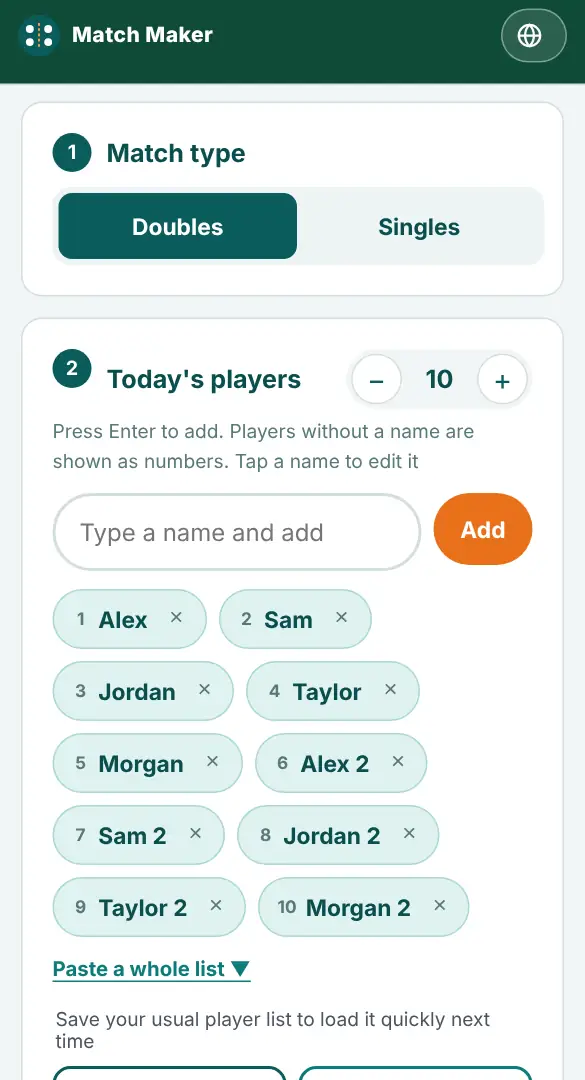
In step 1, pick doubles or singles.
Add the players
Type a name in step 2 and press Enter. You can also just set the number of players and use numbers. To add a whole list at once, use "Paste a list of names".
Set courts and matches, then press the button
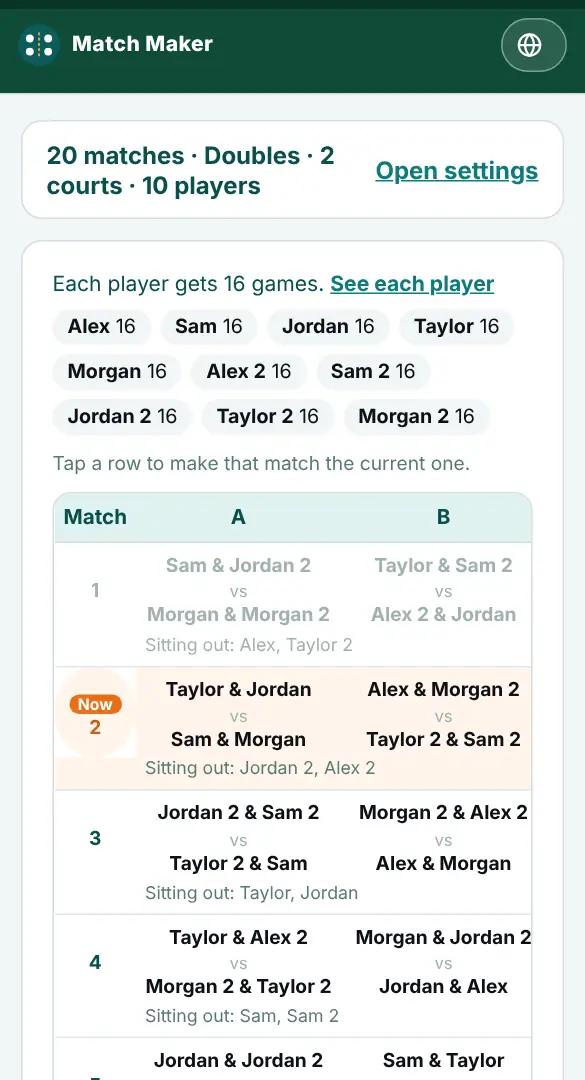
Choose courts and the number of matches in step 3 and press the orange button. The schedule appears right below.
During play
Move on with "Next match"
The current match turns orange. Tap any row to jump to that match.
Send it to everyone
"Copy" gives text you can paste into a chat. "Save as image" makes a picture of the table.
Close and come back
Your latest schedule and current match stay on this device.
Share with everyone (live view)
Show on everyone's phone
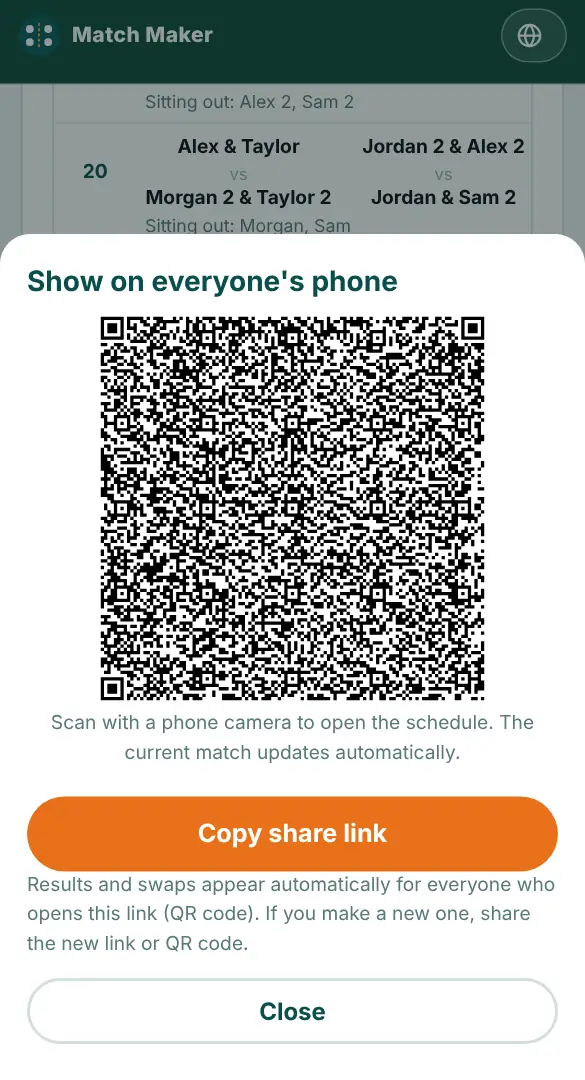
Press “Show on everyone's phone” to show a QR code and a link. Let people scan the QR code with their phone camera at the venue, or send the link via a chat app. Scan with a phone camera to open the schedule. The current match updates automatically.
See your next match
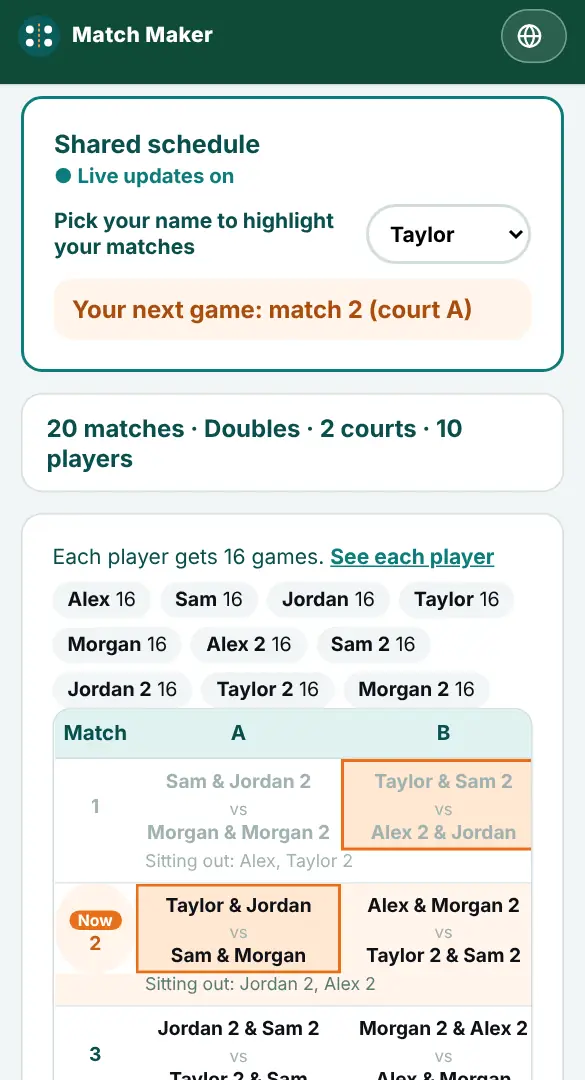
Your next game: match 3 (court B)
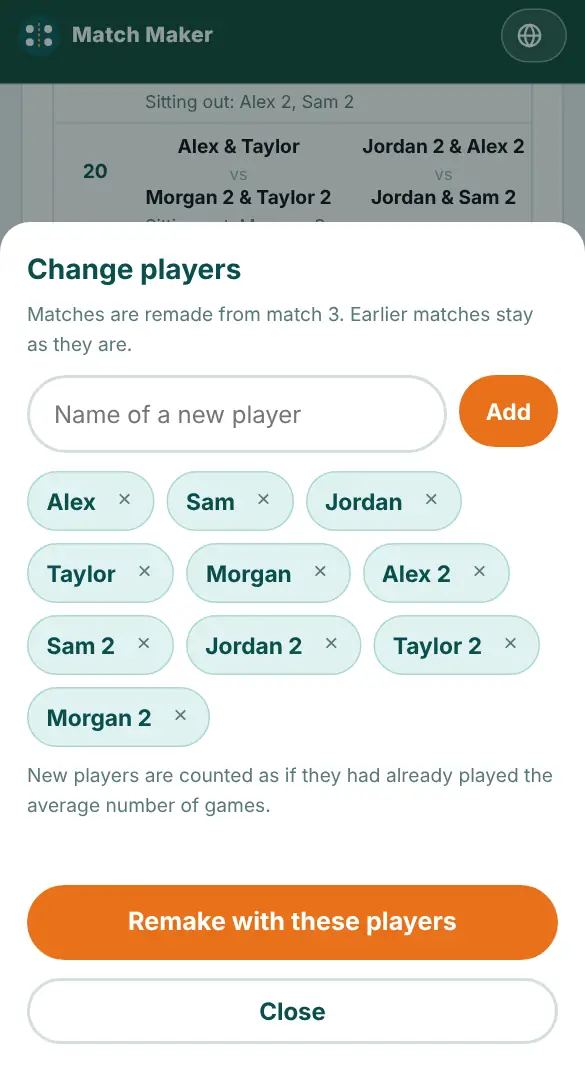
Change players
New players are counted as if they had already played the average number of games.
How the matches are chosen
For each match, players with the fewest games so far are picked first. Then hundreds of ways to split them are tried, and the one with the least overlap with recent partners and opponents is kept. It also avoids making someone sit out twice in a row or always play on the same court.
Using the tools together
Switch tools
The bar at the very top lets you switch between the four tools — matches, tournament, round robin and team splitter — at any time.
Send names to another tool
The buttons below the result open another tool without typing the names again. For example, you can turn team splitter results straight into a tournament bracket or a round robin.
Troubleshooting
The shared screen does not update
Check that the organizer’s device is online. Viewers can reopen the link to get the latest state. After changing the members, share the new link or QR code.
Frequently asked questions are on the tool page.
See the FAQIf this tool helped you, you can support it on Ko-fi. It keeps the tools free.
☕ Support on Ko-fiMatch Maker · match.matchgentools.com